

How’s it work?
I’m glad you asked!- Create an application for your hardware vendor—save the Client ID!
- Talk to Discord via one simple HTTP or WebSocket call
- Send us a
SET_CERTIFIED_DEVICESWebSocket payload or equivalent HTTP POST whenever the state of the device changes
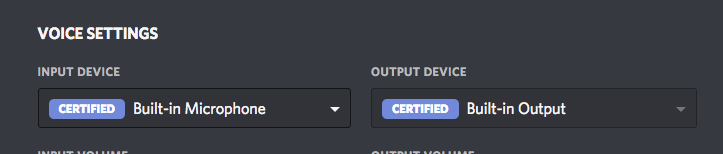
CERTIFIED badge in Discord’s audio settings, and really, who doesn’t love badges?
Connecting
Query String Params
You can send event updates to the following URIs:
HTTP
WebSocket
PORT is a range of ports from 6463 to 6473. You should iterate over these ports with your request until one returns a success response code or succeeds with a socket connection. Keep track of that port number for the rest of the session.
To keep your hardware in sync with Discord, send updates any time the hardware mute is toggled, or one of the voice features like echo cancellation is enabled or disabled by the user. This lets Discord get out of the way of your optimization when you’re in control, or help out when you’re not, ensuring an awesome experience for anyone using your hardware.
Each time you update, send a full array of devices, sorted by your preferred priority. That means if you want a specific headset to be the default that Discord will attempt to use, put it first in the array.
Getting Device UUID
For each device in theSET_CERTIFIED_DEVICES payload, there is an id field. This id should be the Windows device’s UUID, retrieved through the native Windows API. You’ll get back something that looks like {0.0.1.00000000}.{6cff2b76-44a8-46b9-b528-262ad8609d9f}.
On macOS, the
id will be the name of the device.Microphone Id Example
Speaker Id Example
HTTP Example
HTTP Request Example
200 OK status code and the following JSON.
HTTP Response Example
WebSocket Example
RPC Command Example
RPC Response Example
Models
Device Object
*These fields are only applicable for
AUDIO_INPUT device types