> ## Documentation Index
> Fetch the complete documentation index at: https://docs.discord.com/llms.txt
> Use this file to discover all available pages before exploring further.
# Getting Started with Unreal Engine and the Discord Social SDK
> Integrate the Discord Social SDK into Unreal Engine games.
export const InboxIcon = props => ;
export const UserStatusIcon = props => ;
export const ListViewIcon = props => ;
## Overview
This guide will walk you through integrating the Discord Social SDK into an Unreal Engine project. By the end, you'll have a project that can:
* Authenticate users with Discord
* Set up logging and status monitoring
* Start the SDK and establish a connection
* Request the number of Discord friends the player has
For the initial launch, the Unreal plugin has a name of `DiscordPartnerSDK` but this name will be changing to `DiscordSocialSDK` in a future version
### Prerequisites
We are going to make a simple Unreal console application for this guide. Make sure you have the following prerequisites:
* Windows
* Visual Studio 2022
* Unreal Engine 5.5
Let's walk through the steps in detail.
***
## Step 1: Create a Discord Developer Team
Before you start, you'll need to create a developer team on the Discord Developer Portal. This team will be used to manage your Discord applications and SDK integrations.
If you already have a team configured, you can skip this step.
1. Create a developer team on the [Discord Developer Portal](https://discord.com/developers/teams).
Later, you can invite your team members to your new team to collaborate on your integration.
***
## Step 2: Create a Discord Application
1. Create a new application on the [Discord Developer Portal](https://discord.com/developers/applications) and assign it to your team.
2. Add a redirect URL in the [OAuth2 tab](https://discord.com/developers/applications/select/oauth2):
* For desktop applications: `http://127.0.0.1/callback` (this can be changed later).
* See [`discordpp::Client::Authorize`](https://discord.com/developers/docs/social-sdk/classdiscordpp_1_1Client.html#ace94a58e27545a933d79db32b387a468) for more details on setting up more advanced redirect URIs.
3. Enable the `Public Client` toggle in the [OAuth2 tab](https://discord.com/developers/applications/select/oauth2).
This guide requires enabling **Public Client** to allow you to get started with the SDK quickly. Most games will not want to ship as a public client. This setting should be reviewed by your team prior to releasing your game. [Learn more about public clients](/developers/discord-social-sdk/core-concepts/oauth2-scopes#oauth2-client-types).
***
## Step 3: Enable Discord Social SDK for Your App
Once you've created your Discord application, you'll need to enable the Discord Social SDK for it.
1. From the [Discord Developer Portal](https://discord.com/developers/applications), select your newly created application from Step 2.
2. In the left sidebar for your app, locate and click the [Getting Started](https://discord.com/developers/applications/select/social-sdk/getting-started) link under `Discord Social SDK`.
3. Fill out the form to share details about your game.
4. Click `Submit` and the Social SDK will be enabled for your application.
5. Once enabled, you'll find binaries for the Social SDK under [Downloads](https://discord.com/developers/applications/select/social-sdk/downloads).
***
## Step 4: Download the Social SDK for Unreal Engine
1. Click on the [Downloads](https://discord.com/developers/applications/select/social-sdk/downloads) link under the Discord Social SDK section of the sidebar.
2. Select the latest version from the version dropdown and download the SDK for Unreal Engine.
A Unreal Engine sample project is available for download on this page, but we are not going to cover it in this guide. Explore it on your own after you finish this guide!
***
## Step 5: Project Setup
### Create a new Unreal Engine project
Select Third Person Unreal project (C++ language). We'll set the project name to `DiscordSocialUnreal`.
The code samples below assume the project name is `DiscordSocialUnreal`. If you use a different name, make sure to replace it in the code.
Wait for the shaders to compile. This can take a while.
### Add the Discord SDK to the project
Locate your Unreal project in the Windows file explorer.
Create a new directory named `Plugins` in the base of your project directory (`DiscordSocialUnreal/Plugins`).
Extract the Discord SDK archive in the Plugins directory. You should end up with a directory called `DiscordPartnerSDK` inside of Plugins `DiscordSocialUnreal/Plugins/DiscordPartnerSDK`.
Double check the name of the `DiscordPartnerSDK` folder once you've extracted it. It may change between versions and you'll need to add the correct name in the code below.
Reload Unreal Editor and open the project. It should ask if you'd like to recompile the `DiscordPartnerSDK` plugin on launch.
Open Visual Studio from the `Tools -> Open Visual Studio` menu in Unreal Editor.
Open your `DiscordSocialUnreal.Build.cs` file located at `/Source/DiscordSocialUnreal/` and add the following line after `PublicDependencyModuleNames` array:
```cpp theme={"system"}
PrivateDependencyModuleNames.AddRange(new string[] { "DiscordPartnerSDK" });
```
Back in Unreal Editor, refresh the Visual Studio Project from the `Tools -> Refresh Visual Studio Project` menu.
In the Unreal Editor, compile the code with `Ctrl-Alt-F11`. You should see a "Live coding succeeded" modal window if the compilation is successful.
***
## Step 6: Initialize the SDK
In this section, we'll add callbacks for logging and status of the SDK and OAuth2 authentication to support account linking with Discord. This process will:
1. Open the Discord app or a browser window for Discord login
2. Get an authorization code
3. Exchange it for an access token
4. Connect to Discord
**Building for mobile?** On iOS and Android you only need to configure your Discord Application ID in Project Settings. Set that up in the [Account Linking on Mobile](/developers/discord-social-sdk/development-guides/account-linking-on-mobile) guide, then continue here. The rest of this step is the same for mobile.
**Choosing your OAuth2 scopes:** This guide uses `UDiscordClient::GetDefaultPresenceScopes()`, which requests the `openid` and `sdk.social_layer_presence` scopes. These enable core features like account linking, friends list, and rich presence.
If your game also needs lobbies, voice chat, or direct messaging, use `UDiscordClient::GetDefaultCommunicationScopes()` instead.
See the [OAuth2 Scopes guide](/developers/discord-social-sdk/core-concepts/oauth2-scopes) for the full breakdown.
Open `DiscordSocialUnrealCharacter.h` in Visual Studio, where we start integrating the Social SDK!
### DiscordLocalPlayerSubsystem
To use the Social SDK with Unreal Engine, we will need to include the `DiscordLocalPlayerSubsystem` which is responsible for managing the lifecycle of the client and executing the [`RunCallbacks`] event loop.
Add the following code to `DiscordSocialUnrealCharacter.h`:
```cpp theme={"system"}
#include "DiscordLocalPlayerSubsystem.h"
```
Now let's add the following functions to the public section of the DiscordSocialUnrealCharacter class:
##### **DiscordSocialUnrealCharacter.h**
```cpp theme={"system"}
UFUNCTION(Exec)
void DiscordConnect();
UFUNCTION()
void OnStatusChanged(EDiscordClientStatus Status, EDiscordClientError Error, int32 ErrorDetail);
UPROPERTY()
UDiscordAuthorizationCodeVerifier* CodeVerifier;
UPROPERTY()
UDiscordLocalPlayerSubsystem* Discord;
```
And add the following functions to the protected section of the DiscordSocialUnrealCharacter class:
##### **DiscordSocialUnrealCharacter.h**
```cpp theme={"system"}
void BeginPlay();
void OnLogMessage(FString Message, EDiscordLoggingSeverity Severity);
void OnAuthorizeCompleted(UDiscordClientResult* Result, FString Code, FString RedirectUri);
void OnTokenExchange(UDiscordClientResult* Result, FString AccessToken, FString RefreshToken, EDiscordAuthorizationTokenType TokenType, int32 ExpiresIn, FString Scope);
void OnTokenUpdated(UDiscordClientResult* Result);
```
Now let's add the implementation of these functions to the `DiscordSocialUnrealCharacter.cpp` file.
In the `DiscordSocialUnrealCharacter.cpp` file, add the following code:
##### **DiscordSocialUnrealCharacter.cpp**
```cpp theme={"system"}
#define APPLICATION_ID 1111111111111111111
void ADiscordSocialUnrealCharacter::BeginPlay() {
auto PlayerController = Cast(GetController());
auto LocalPlayer = PlayerController->GetLocalPlayer();
Discord = ULocalPlayer::GetSubsystem(LocalPlayer);
auto LogCallback = FDiscordClientLogCallback::CreateUObject(this, &ADiscordSocialUnrealCharacter::OnLogMessage);
FScriptDelegate StatusChanged;
StatusChanged.BindUFunction(this, "OnStatusChanged");
Discord->Client->AddLogCallback(LogCallback, EDiscordLoggingSeverity::Info);
Discord->OnStatusChanged.Add(StatusChanged);
}
void ADiscordSocialUnrealCharacter::DiscordConnect() {
CodeVerifier = Discord->Client->CreateAuthorizationCodeVerifier();
auto AuthArgs = NewObject();
AuthArgs->Init();
AuthArgs->SetClientId(APPLICATION_ID);
AuthArgs->SetScopes(UDiscordClient::GetDefaultPresenceScopes());
AuthArgs->SetCodeChallenge(CodeVerifier->Challenge());
Discord->Client->Authorize(AuthArgs, FDiscordClientAuthorizationCallback::CreateUObject(this, &ADiscordSocialUnrealCharacter::OnAuthorizeCompleted));
}
void ADiscordSocialUnrealCharacter::OnLogMessage(FString Message, EDiscordLoggingSeverity Severity) {
UE_LOG(LogTemplateCharacter, Log, TEXT("[%s] %s"), *UEnum::GetValueAsString(Severity), *Message);
}
void ADiscordSocialUnrealCharacter::OnStatusChanged(EDiscordClientStatus Status, EDiscordClientError Error, int32 ErrorDetail) {
UE_LOG(LogTemplateCharacter, Log, TEXT("Connection status: %s"), *UEnum::GetValueAsString(Status));
if (Status == EDiscordClientStatus::Ready) {
UE_LOG(LogTemplateCharacter, Log, TEXT("Connected to Discord! Ready to go! You can now start using Discord features."));
}
else if (Error != EDiscordClientError::None) {
UE_LOG(LogTemplateCharacter, Log, TEXT("Connection error: %s (Detail: %d)"), *UEnum::GetValueAsString(Error), ErrorDetail);
}
}
void ADiscordSocialUnrealCharacter::OnAuthorizeCompleted(UDiscordClientResult* Result, FString Code, FString RedirectUri) {
if (!Result->Successful()) {
UE_LOG( LogTemplateCharacter, Error, TEXT("Discord authorization failed: %s"), *Result->Error());
return;
}
UE_LOG(LogTemplateCharacter, Log, TEXT("Authorization successful! Getting access token..."));
Discord->Client->GetToken(APPLICATION_ID, Code, CodeVerifier->Verifier(), RedirectUri, FDiscordClientTokenExchangeCallback::CreateUObject(this, &ADiscordSocialUnrealCharacter::OnTokenExchange));
}
void ADiscordSocialUnrealCharacter::OnTokenExchange(UDiscordClientResult* Result, FString AccessToken, FString RefreshToken, EDiscordAuthorizationTokenType TokenType, int32 ExpiresIn, FString Scope) {
if (!Result->Successful()) {
UE_LOG(LogTemplateCharacter, Error, TEXT("Discord token exchange failed: %s"), *Result->Error());
}
Discord->Client->UpdateToken(TokenType, AccessToken, FDiscordClientUpdateTokenCallback::CreateUObject(this, &ADiscordSocialUnrealCharacter::OnTokenUpdated));
}
void ADiscordSocialUnrealCharacter::OnTokenUpdated(UDiscordClientResult* Result) {
Discord->Client->Connect();
}
```
### What's Happening Here?
1. We create a code verifier for OAuth2 PKCE security
2. Set up authorization arguments with your app ID and required scopes
3. Start the auth flow with [`Client::Authorize`], which opens a browser
4. When authorized, we exchange the code for an access token
5. [`Client::UpdateToken`] tells the SDK to use our access token for Discord API calls
6. Once the token is updated, we call [`Client::Connect`], and the SDK will begin connecting asynchronously
### Testing It Out
Save your changes in Visual Studio and return to Unreal Editor.
Compile the code in Unreal Editor with `Ctrl-Alt-F11`
Enter play mode and find the console at the bottom of Unreal Editor. Run `DiscordConnect` as a command to start the account linking process.
```
DiscordConnect
```
If Discord is open on your computer, you should see a prompt to authorize the connection. Click "Authorize" to continue.
If the connection is successful, you should see a message in the Unreal Editor console that says, "Connected to Discord! Ready to go! You can now start using Discord features."
Most Discord features won't work until the status is `Ready`. The status callback lets you know when you can start using them.
### Troubleshooting
* Double check your `APPLICATION_ID` is correct
* Ensure you've added the redirect URL in your Discord Developer Portal
* Check the output log for specific error messages
* Check that your access token is valid
* Ensure you have internet connectivity
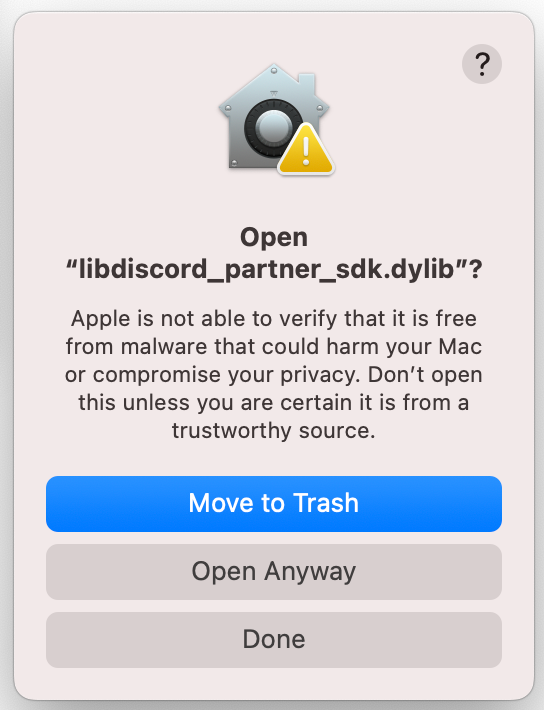
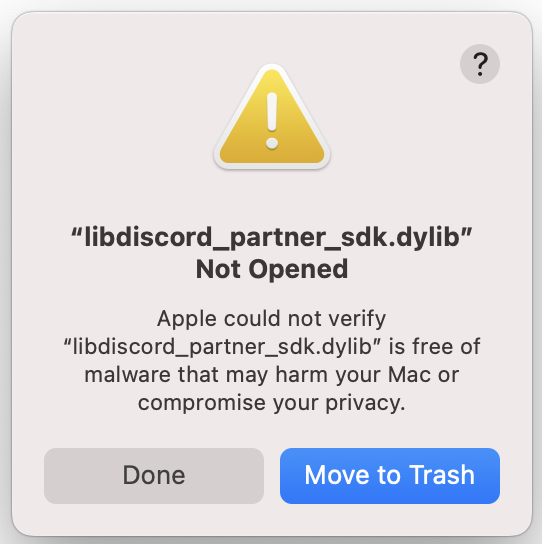
On Mac you may get the error "libdiscord\_partner\_sdk.dylib" Not Opened because Apple couldn't verify it. If this happens press **Done** on the popup.
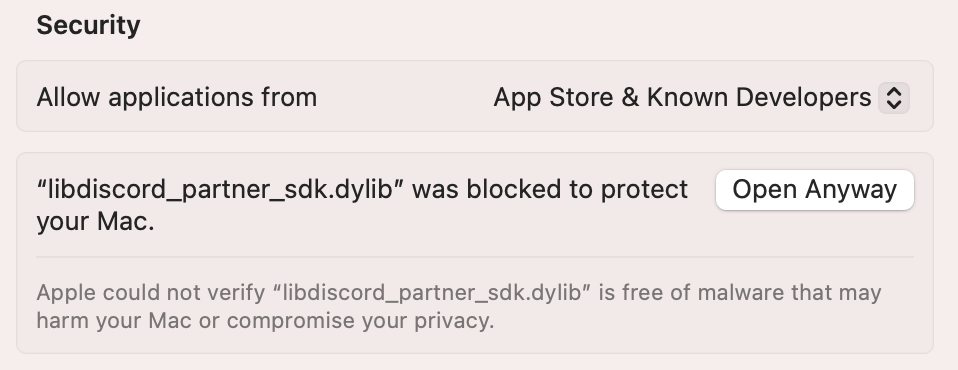
You'll need to open your **System Settings > Privacy & Security** and scroll down to the **Security** section. It will tell you "libdiscord\_partner\_sdk.dylib" was blocked to protect your Mac. Press **Open Anyway** and try running again.
Now when you get the pop up you'll have the option to select **Open Anyway** and it will be able to use it successfully.
Now that your client is in a ready state, we can start implementing Discord social features.
## Step 7: Access Discord Relationships
Let's access the user's Discord relationships (friends list) and display the count. This will help you understand how to access and use Discord data in your game.
Add this code to the `Ready` section of `OnStatusChanged`:
```cpp theme={"system"}
if (Status == EDiscordClientStatus::Ready) {
UE_LOG(LogTemplateCharacter, Log, TEXT("Connected to Discord! Ready to go! You can now start using Discord features."));
UE_LOG(LogTemplateCharacter, Log, TEXT("👥 Friends Count: %d"), Discord->Client->GetRelationships().Num());
}
```
### What This Code Does
Now, when the client status is `Ready,` we'll call [`Client::GetRelationships`], returning us a list of all the player's friends. We then log the number of friends directly to the output log.
### Testing It Out
Save your changes in Visual Studio and return to Unreal Editor.
Compile the code in Unreal Editor with `Ctrl-Alt-F11`
Enter play mode, and find the console at the bottom of Unreal Editor, run `DiscordConnect`.
### Example Output
```
👥 Friends Count: 42
```
### Troubleshooting
* Verify your OAuth2 scopes include relationships access
* Ensure you're connected (status is `Ready`)
* Check that you have friends on Discord
* Look for errors in the output log
Next, we'll learn how to show your game's activity on Discord with Rich Presence!
## Step 8: Set Rich Presence
Let's show your game's activity on Discord using Rich Presence. This feature lets players see what others are doing in your game directly in their Discord friends list.
Add this code to the `Ready` section of `OnStatusChanged`:
```cpp theme={"system"}
if (Status == EDiscordClientStatus::Ready) {
UE_LOG(LogTemplateCharacter, Log, TEXT("Connected to Discord! Ready to go! You can now start using Discord features."));
UE_LOG(LogTemplateCharacter, Log, TEXT("👥 Friends Count: %d"), Discord->Client->GetRelationships().Num());
UE_LOG(LogTemplateCharacter, Log, TEXT("Connected to Discord! Ready to go! You can now start using Discord features."));
UDiscordActivity* Activity = NewObject();
Activity->Init();
Activity->SetType(EDiscordActivityTypes::Playing);
Activity->SetState("In competitive match");
Activity->SetDetails("Rank: Diamond II");
Discord->Client->UpdateRichPresence(Activity, FDiscordClientUpdateRichPresenceCallback::CreateUObject(this, &ADiscordSocialUnrealCharacter::OnRichPresenceUpdated));
}
```
Then add this new method:
```cpp theme={"system"}
void ADiscordSocialUnrealCharacter::OnRichPresenceUpdated(UDiscordClientResult* Result) {
if (Result->Successful()) {
UE_LOG(LogTemplateCharacter, Log, TEXT("Rich Presence updated successfully!"));
} else {
UE_LOG(LogTemplateCharacter, Error, TEXT("Rich Presence update failed"));
}
}
```
### What This Code Does
1. Creates an [`Activity`] object to represent what the player is doing
2. Sets basic information like:
* The activity type (Playing)
* Current state ("In Competitive Match")
* Additional details ("Rank: Diamond II")
3. Updates your rich presence on Discord
### Testing It Out
Save your changes in Visual Studio and return to Unreal Editor.
Compile the code in Unreal Editor with `Ctrl-Alt-F11`
Enter play mode and find the console at the bottom of Unreal Editor. Run `DiscordConnect.`
Once the OAuth flow is complete, the output log will tell you if setting rich presence was successful, and you can check your Discord profile to see it!
### Troubleshooting
If you don't see your presence:
* Ensure you're connected (status is `Ready`)
* Check the output log for error messages
* Verify your activity settings are valid
* Make sure you're not invisible on Discord
***
```cs theme={"system"}
// Copyright Epic Games, Inc. All Rights Reserved.
using UnrealBuildTool;
public class DiscordSocialUnreal : ModuleRules
{
public DiscordSocialUnreal(ReadOnlyTargetRules Target) : base(Target)
{
PCHUsage = PCHUsageMode.UseExplicitOrSharedPCHs;
PublicDependencyModuleNames.AddRange(new string[] { "Core", "CoreUObject", "Engine", "InputCore", "EnhancedInput" });
PrivateDependencyModuleNames.AddRange(new string[] { "DiscordPartnerSDK" });
}
}
```
```cpp theme={"system"}
// Copyright Epic Games, Inc. All Rights Reserved.
#include "DiscordSocialUnrealCharacter.h"
#include "Engine/LocalPlayer.h"
#include "Camera/CameraComponent.h"
#include "Components/CapsuleComponent.h"
#include "GameFramework/CharacterMovementComponent.h"
#include "GameFramework/SpringArmComponent.h"
#include "GameFramework/Controller.h"
#include "EnhancedInputComponent.h"
#include "EnhancedInputSubsystems.h"
#include "InputActionValue.h"
DEFINE_LOG_CATEGORY(LogTemplateCharacter);
#define APPLICATION_ID 1111111111111111111
void ADiscordSocialUnrealCharacter::BeginPlay() {
auto PlayerController = Cast(GetController());
auto LocalPlayer = PlayerController->GetLocalPlayer();
Discord = ULocalPlayer::GetSubsystem(LocalPlayer);
auto LogCallback = FDiscordClientLogCallback::CreateUObject(this, &ADiscordSocialUnrealCharacter::OnLogMessage);
FScriptDelegate StatusChanged;
StatusChanged.BindUFunction(this, "OnStatusChanged");
Discord->Client->AddLogCallback(LogCallback, EDiscordLoggingSeverity::Info);
Discord->OnStatusChanged.Add(StatusChanged);
}
void ADiscordSocialUnrealCharacter::DiscordConnect() {
CodeVerifier = Discord->Client->CreateAuthorizationCodeVerifier();
auto AuthArgs = NewObject();
AuthArgs->Init();
AuthArgs->SetClientId(APPLICATION_ID);
AuthArgs->SetScopes(UDiscordClient::GetDefaultPresenceScopes());
AuthArgs->SetCodeChallenge(CodeVerifier->Challenge());
Discord->Client->Authorize(AuthArgs, FDiscordClientAuthorizationCallback::CreateUObject(this, &ADiscordSocialUnrealCharacter::OnAuthorizeCompleted));
}
void ADiscordSocialUnrealCharacter::OnLogMessage(FString Message, EDiscordLoggingSeverity Severity) {
UE_LOG(LogTemplateCharacter, Log, TEXT("[%s] %s"), *UEnum::GetValueAsString(Severity), *Message);
}
void ADiscordSocialUnrealCharacter::OnStatusChanged(EDiscordClientStatus Status, EDiscordClientError Error, int32 ErrorDetail) {
UE_LOG(LogTemplateCharacter, Log, TEXT("Connection status: %s"), *UEnum::GetValueAsString(Status));
if (Status == EDiscordClientStatus::Ready) {
UE_LOG(LogTemplateCharacter, Log, TEXT("Connected to Discord! Ready to go! You can now start using Discord features."));
UE_LOG(LogTemplateCharacter, Log, TEXT("Number of Relationships: %d"), Discord->Client->GetRelationships().Num());
UDiscordActivity activity;
activity.SetDetails("In competitive");
activity.SetState("Diamond II");
}
else if (Error != EDiscordClientError::None) {
UE_LOG(LogTemplateCharacter, Log, TEXT("Connection error: %s (Detail: %d)"), *UEnum::GetValueAsString(Error), ErrorDetail);
}
}
void ADiscordSocialUnrealCharacter::OnAuthorizeCompleted(UDiscordClientResult* Result, FString Code, FString RedirectUri) {
if (!Result->Successful()) {
UE_LOG(LogTemplateCharacter, Error, TEXT("Discord authorization failed: %s"), *Result->Error());
return;
}
UE_LOG(LogTemplateCharacter, Log, TEXT("Authorization successful! Getting access token..."));
Discord->Client->GetToken(APPLICATION_ID, Code, CodeVerifier->Verifier(), RedirectUri, FDiscordClientTokenExchangeCallback::CreateUObject(this, &ADiscordSocialUnrealCharacter::OnTokenExchange));
}
void ADiscordSocialUnrealCharacter::OnTokenExchange(UDiscordClientResult* Result, FString AccessToken, FString RefreshToken, EDiscordAuthorizationTokenType TokenType, int32 ExpiresIn, FString Scope) {
if (!Result->Successful()) {
UE_LOG(LogTemplateCharacter, Error, TEXT("Discord token exchange failed: %s"), *Result->Error());
}
Discord->Client->UpdateToken(TokenType, AccessToken, FDiscordClientUpdateTokenCallback::CreateUObject(this, &ADiscordSocialUnrealCharacter::OnTokenUpdated));
}
void ADiscordSocialUnrealCharacter::OnTokenUpdated(UDiscordClientResult* Result) {
Discord->Client->Connect();
}
//////////////////////////////////////////////////////////////////////////
// ADiscordSocialUnrealCharacter
ADiscordSocialUnrealCharacter::ADiscordSocialUnrealCharacter()
{
// Set size for collision capsule
GetCapsuleComponent()->InitCapsuleSize(42.f, 96.0f);
// Don't rotate when the controller rotates. Let that just affect the camera.
bUseControllerRotationPitch = false;
bUseControllerRotationYaw = false;
bUseControllerRotationRoll = false;
// Configure character movement
GetCharacterMovement()->bOrientRotationToMovement = true; // Character moves in the direction of input...
GetCharacterMovement()->RotationRate = FRotator(0.0f, 500.0f, 0.0f); // ...at this rotation rate
// Note: For faster iteration times these variables, and many more, can be tweaked in the Character Blueprint
// instead of recompiling to adjust them
GetCharacterMovement()->JumpZVelocity = 700.f;
GetCharacterMovement()->AirControl = 0.35f;
GetCharacterMovement()->MaxWalkSpeed = 500.f;
GetCharacterMovement()->MinAnalogWalkSpeed = 20.f;
GetCharacterMovement()->BrakingDecelerationWalking = 2000.f;
GetCharacterMovement()->BrakingDecelerationFalling = 1500.0f;
// Create a camera boom (pulls in towards the player if there is a collision)
CameraBoom = CreateDefaultSubobject(TEXT("CameraBoom"));
CameraBoom->SetupAttachment(RootComponent);
CameraBoom->TargetArmLength = 400.0f; // The camera follows at this distance behind the character
CameraBoom->bUsePawnControlRotation = true; // Rotate the arm based on the controller
// Create a follow camera
FollowCamera = CreateDefaultSubobject(TEXT("FollowCamera"));
FollowCamera->SetupAttachment(CameraBoom, USpringArmComponent::SocketName); // Attach the camera to the end of the boom and let the boom adjust to match the controller orientation
FollowCamera->bUsePawnControlRotation = false; // Camera does not rotate relative to arm
// Note: The skeletal mesh and anim blueprint references on the Mesh component (inherited from Character)
// are set in the derived blueprint asset named ThirdPersonCharacter (to avoid direct content references in C++)
}
//////////////////////////////////////////////////////////////////////////
// Input
void ADiscordSocialUnrealCharacter::NotifyControllerChanged()
{
Super::NotifyControllerChanged();
// Add Input Mapping Context
if (APlayerController* PlayerController = Cast(Controller))
{
if (UEnhancedInputLocalPlayerSubsystem* Subsystem = ULocalPlayer::GetSubsystem(PlayerController->GetLocalPlayer()))
{
Subsystem->AddMappingContext(DefaultMappingContext, 0);
}
}
}
void ADiscordSocialUnrealCharacter::SetupPlayerInputComponent(UInputComponent* PlayerInputComponent)
{
// Set up action bindings
if (UEnhancedInputComponent* EnhancedInputComponent = Cast(PlayerInputComponent)) {
// Jumping
EnhancedInputComponent->BindAction(JumpAction, ETriggerEvent::Started, this, &ACharacter::Jump);
EnhancedInputComponent->BindAction(JumpAction, ETriggerEvent::Completed, this, &ACharacter::StopJumping);
// Moving
EnhancedInputComponent->BindAction(MoveAction, ETriggerEvent::Triggered, this, &ADiscordSocialUnrealCharacter::Move);
// Looking
EnhancedInputComponent->BindAction(LookAction, ETriggerEvent::Triggered, this, &ADiscordSocialUnrealCharacter::Look);
}
else
{
UE_LOG(LogTemplateCharacter, Error, TEXT("'%s' Failed to find an Enhanced Input component! This template is built to use the Enhanced Input system. If you intend to use the legacy system, then you will need to update this C++ file."), *GetNameSafe(this));
}
}
void ADiscordSocialUnrealCharacter::Move(const FInputActionValue& Value)
{
// input is a Vector2D
FVector2D MovementVector = Value.Get();
if (Controller != nullptr)
{
// find out which way is forward
const FRotator Rotation = Controller->GetControlRotation();
const FRotator YawRotation(0, Rotation.Yaw, 0);
// get forward vector
const FVector ForwardDirection = FRotationMatrix(YawRotation).GetUnitAxis(EAxis::X);
// get right vector
const FVector RightDirection = FRotationMatrix(YawRotation).GetUnitAxis(EAxis::Y);
// add movement
AddMovementInput(ForwardDirection, MovementVector.Y);
AddMovementInput(RightDirection, MovementVector.X);
}
}
void ADiscordSocialUnrealCharacter::Look(const FInputActionValue& Value)
{
// input is a Vector2D
FVector2D LookAxisVector = Value.Get();
if (Controller != nullptr)
{
// add yaw and pitch input to controller
AddControllerYawInput(LookAxisVector.X);
AddControllerPitchInput(LookAxisVector.Y);
}
}
```
```cpp theme={"system"}
// Copyright Epic Games, Inc. All Rights Reserved.
#pragma once
#include "CoreMinimal.h"
#include "DiscordLocalPlayerSubsystem.h"
#include "GameFramework/Character.h"
#include "Logging/LogMacros.h"
#include "DiscordSocialUnrealCharacter.generated.h"
class USpringArmComponent;
class UCameraComponent;
class UInputMappingContext;
class UInputAction;
struct FInputActionValue;
DECLARE_LOG_CATEGORY_EXTERN(LogTemplateCharacter, Log, All);
UCLASS(config=Game)
class ADiscordSocialUnrealCharacter : public ACharacter
{
GENERATED_BODY()
/** Camera boom positioning the camera behind the character */
UPROPERTY(VisibleAnywhere, BlueprintReadOnly, Category = Camera, meta = (AllowPrivateAccess = "true"))
USpringArmComponent* CameraBoom;
/** Follow camera */
UPROPERTY(VisibleAnywhere, BlueprintReadOnly, Category = Camera, meta = (AllowPrivateAccess = "true"))
UCameraComponent* FollowCamera;
/** MappingContext */
UPROPERTY(EditAnywhere, BlueprintReadOnly, Category = Input, meta = (AllowPrivateAccess = "true"))
UInputMappingContext* DefaultMappingContext;
/** Jump Input Action */
UPROPERTY(EditAnywhere, BlueprintReadOnly, Category = Input, meta = (AllowPrivateAccess = "true"))
UInputAction* JumpAction;
/** Move Input Action */
UPROPERTY(EditAnywhere, BlueprintReadOnly, Category = Input, meta = (AllowPrivateAccess = "true"))
UInputAction* MoveAction;
/** Look Input Action */
UPROPERTY(EditAnywhere, BlueprintReadOnly, Category = Input, meta = (AllowPrivateAccess = "true"))
UInputAction* LookAction;
public:
ADiscordSocialUnrealCharacter();
UFUNCTION(Exec)
void DiscordConnect();
UFUNCTION()
void OnStatusChanged(EDiscordClientStatus Status, EDiscordClientError Error, int32 ErrorDetail);
UPROPERTY()
UDiscordAuthorizationCodeVerifier* CodeVerifier;
UPROPERTY()
UDiscordLocalPlayerSubsystem* Discord;
protected:
/** Called for movement input */
void Move(const FInputActionValue& Value);
/** Called for looking input */
void Look(const FInputActionValue& Value);
void BeginPlay();
void OnLogMessage(FString Message, EDiscordLoggingSeverity Severity);
void OnAuthorizeCompleted(UDiscordClientResult* Result, FString Code, FString RedirectUri);
void OnRichPresenceUpdated(UDiscordClientResult* Result);
void OnTokenExchange(UDiscordClientResult* Result, FString AccessToken, FString RefreshToken, EDiscordAuthorizationTokenType TokenType, int32 ExpiresIn, FString Scope);
void OnTokenUpdated(UDiscordClientResult* Result);
protected:
virtual void NotifyControllerChanged() override;
virtual void SetupPlayerInputComponent(class UInputComponent* PlayerInputComponent) override;
public:
/** Returns CameraBoom subobject **/
FORCEINLINE class USpringArmComponent* GetCameraBoom() const { return CameraBoom; }
/** Returns FollowCamera subobject **/
FORCEINLINE class UCameraComponent* GetFollowCamera() const { return FollowCamera; }
};
```
***
## Conclusion
Congratulations! You've successfully integrated the Discord Social SDK into your C++ application. Let's review what you've accomplished:
### What You've Built
* ✅ Created a Discord application and configured OAuth2
* ✅ Set up SDK logging and status monitoring
* ✅ Implemented user authentication flow
* ✅ Retrieved Discord relationships data
* ✅ Added Rich Presence support
### Key Concepts Learned
* How to initialize and configure the Discord SDK
* Managing authentication and connections
* Working with Discord's social features
* Handling asynchronous callbacks
* Monitoring SDK status and events
***
## Next Steps
You have successfully set up the Discord Social SDK with Unreal Engine and authenticated with Discord! You can now use the SDK to add more social features in your project.
}>
Create a unified friends list combining Discord and game-specific friendships
}>
Customize your game's rich presence to show more advanced information and game invites
}>
Allow players to invite friends to join their game session or party.
Need help? Join the [Discord Developers Server](https://discord.gg/discord-developers) and share questions in the `#social-sdk-dev-help` channel for support from the community.
If you encounter a bug while working with the Social SDK, please report it here: [https://dis.gd/social-sdk-bug-report](https://dis.gd/social-sdk-bug-report)
***
## Change Log
| Date | Changes |
| -------------- | --------------- |
| March 17, 2025 | initial release |
[`Activity`]: https://discord.com/developers/docs/social-sdk/classdiscordpp_1_1Activity.html#ae793d9adbe16fef402b859ba02bee682
[`Client::Authorize`]: https://discord.com/developers/docs/social-sdk/classdiscordpp_1_1Client.html#ace94a58e27545a933d79db32b387a468
[`Client::Connect`]: https://discord.com/developers/docs/social-sdk/classdiscordpp_1_1Client.html#a873a844c7c4c72e9e693419bb3e290aa
[`Client::GetRelationships`]: https://discord.com/developers/docs/social-sdk/classdiscordpp_1_1Client.html#ad481849835cd570f0e03adafcf90125d
[`Client::UpdateToken`]: https://discord.com/developers/docs/social-sdk/classdiscordpp_1_1Client.html#a606b32cef7796f7fb91c2497bc31afc4
[`RunCallbacks`]: https://discord.com/developers/docs/social-sdk/namespacediscordpp.html#ab5dd8cf274f581ee1885de5816be3c29
 You'll need to open your **System Settings > Privacy & Security** and scroll down to the **Security** section. It will tell you "libdiscord\_partner\_sdk.dylib" was blocked to protect your Mac. Press **Open Anyway** and try running again.
 Now when you get the pop up you'll have the option to select **Open Anyway** and it will be able to use it successfully.